
iScanner - PDF Scanner App
BP Mobile LLCProductivity
4.74.99K Reviews
- Version
- 6.6.5
- Installs
- 10.00M
- Age Rating
- Everyone
Screenshots
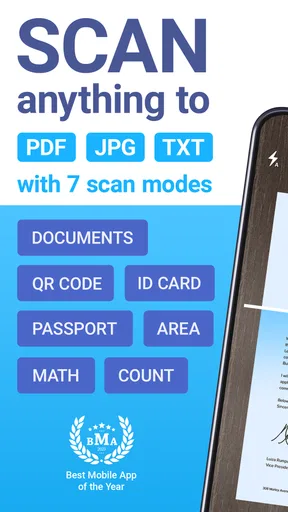
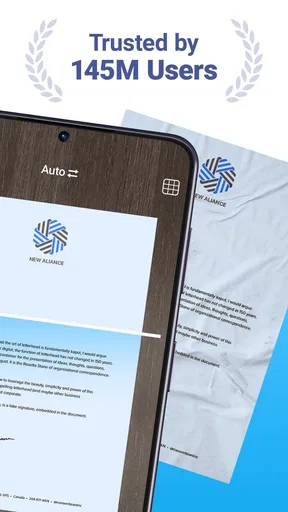
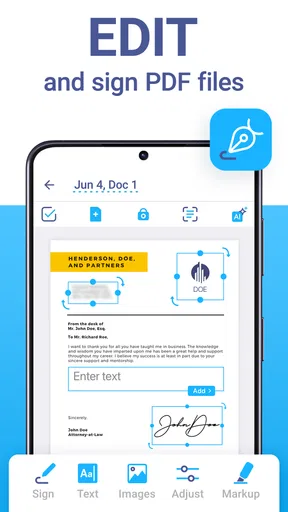
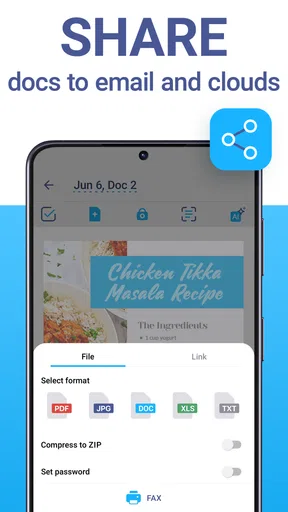
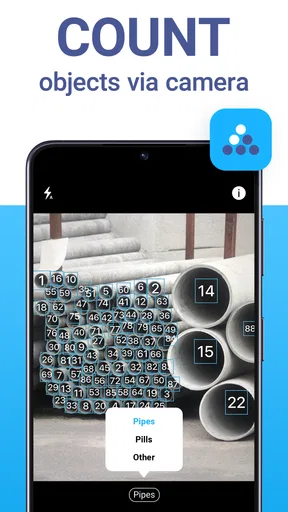
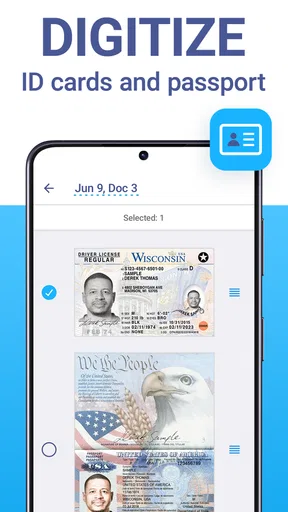
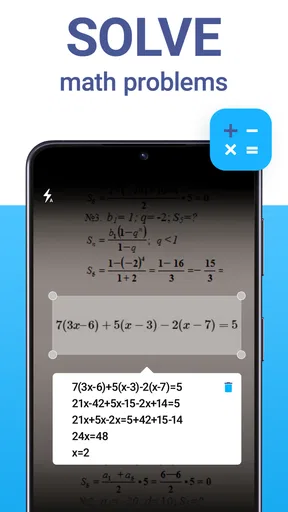
Our Review of iScanner - PDF Scanner App
 Analysis by Appyee
I judge a phone scanner by more than whether it can turn a page into a file. The useful test is what happens when I’m in a hurry, the paper is awkward, and I need the result to be readable and easy to send. iScanner - PDF Scanner App is aimed at that everyday job: it makes capturing documents, tidying the image, and working with the resulting PDF part of one mobile workflow. That can be a real convenience, though it doesn’t make every paper-handling task better than using a dedicated scanner or a simpler camera tool.
Choose it for the whole document workflow
I’d consider this productivity app if I regularly handle forms, receipts, notes, or multi-page paperwork away from a desk. Its appeal is not just that I can take a picture; it is that scanning, adjusting, arranging, and sharing can happen in the same place. BP Mobile LLC has built the app around that practical sequence, which is a better fit for recurring paperwork than taking miscellaneous photos and trying to sort them out later.
There is a useful distinction between a one-off scan and a repeatable workflow. If I only need to photograph a page once in a while, the camera or a basic scan option already on my phone may be enough. If I want a document to look presentable, keep several pages together, and find it again later, a dedicated scanner app earns its place. iScanner makes more sense in the second case, especially for people who do not have a physical scanner close at hand.
What makes the capture useful
The edge detection and manual border controls give me a way to correct the framing instead of accepting a crooked page as-is. That matters when a sheet is placed on a dark table, tucked into a folder, or photographed under uneven light. I still make a quick visual check before moving on: automatic cropping can save time, but a page with a clipped signature, faint pencil marks, or a shadow across a line deserves a closer look.
Filters are worth choosing for the actual paper rather than applying one setting to everything. A black-and-white treatment can help plain printed text stand out, while color is the safer choice when a form uses colored marks or when a receipt’s details are already faint. For a faded or crumpled page, I would compare the result at normal viewing size before sharing it. A scan can look sharp on a phone and still lose a small date or reference number when someone opens it elsewhere.
For a stack of related pages, batch scanning can cut down on the stop-start rhythm of saving each sheet separately. I find it most useful when I decide on the document order first: capture the pages in sequence, inspect the boundaries, and only then treat the set as one job. That small habit reduces the chance of sending a tidy-looking PDF with a missing page or an attachment in the wrong order.
OCR is helpful, but review the extracted text
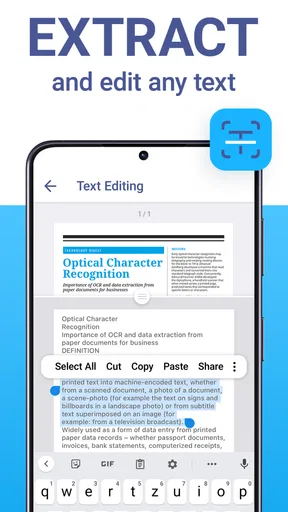
Text recognition is the feature I’d reach for when I need to reuse wording, not merely archive an image. It can turn a printed passage into text I can work with, which is handy for class notes, meeting handouts, or a line from a paper form. I would not treat OCR as a guarantee that every character is correct: unusual fonts, low contrast, skewed pages, and cramped columns can all make recognition less dependable. For names, totals, addresses, or anything legally important, I check the text against the page before relying on it.
A practical way to use OCR is to capture the cleanest page possible first, then extract only what I need. If I am transcribing a paragraph into a draft, a quick correction pass is usually less work than typing from scratch. If I need exact formatting, tables, or a faithful reproduction of a complex layout, I would keep the PDF as the reference and use a more specialized document-editing tool for the final result.
Keep sharing and filing deliberate
Folders help separate scans by purpose, but they work best when I choose a simple naming habit at the same time. A label such as a project, class, or document type is more useful later than a vague name like “scan.” Before I share a file, I also check that it contains only the pages intended for that recipient. This is especially worthwhile with multi-page captures, where a stray page can be easy to overlook.
The app’s sharing options, including cloud destinations such as Google Drive and Dropbox, can reduce the extra steps between capture and storage. I would still decide where a document belongs before sending it: a work form, a personal receipt, and a temporary reference do not necessarily belong in the same folder or account. Password protection can add a useful barrier for a PDF, but it is not a substitute for choosing an appropriate place to store or send sensitive paperwork.
That is the main trade-off with a feature-rich scanner: the convenience comes with a little housekeeping. If I scan without checking the file name, page order, and destination, I have merely moved the mess from a paper pile into a digital one. A few seconds spent reviewing the finished file are part of getting a dependable result.
Where another option may be better
I would choose a dedicated office scanner for large, frequent batches where speed, consistent handling, and a desk-based filing process matter more than portability. A phone is also less comfortable for very long documents or repeated stacks: positioning each page and checking the capture takes attention, and a phone camera cannot remove every reflection or shadow. For a casual snapshot that I do not need to crop, organize, or convert, the regular camera is the quicker choice.
There is also a middle ground: a basic scan function already available on a phone may be enough for someone who only needs an occasional PDF. The advantage of a dedicated app becomes clearer when I want OCR, folders, batch capture, and sharing options together. The disadvantage is that I have another app and workflow to maintain, and some of its in-app purchases cost extra. The app itself is free to download, but optional purchases range from $0.99 to $39.99 per item, so I would check what I actually need before paying for anything.
A realistic example is a student leaving a library with a signed form and several pages of notes. I would capture the form separately from the notes, check that its signature and date are not cropped, and use OCR only for the printed passage I want to quote or edit. Then I would put the files in clearly named folders and share the form with its intended recipient. That is a more controlled use of the app than scanning everything in one rushed batch and sorting it out later.
Who should make the switch
The switch is easiest if I already keep documents on my phone and want one place to capture and prepare them. Existing paper files do not need to be moved all at once; I would start with new receipts or forms, settle on a naming pattern, and scan older paperwork only when there is a reason to retrieve it. That avoids turning setup into a weekend project and lets me see whether the workflow fits my habits.
I would skip it if I rarely scan, already have a reliable scanner routine, or need highly exact text and layout conversion without checking the result. People who handle sensitive documents should also think through where scans are stored and who receives them, rather than assuming an app’s convenience settles those choices. The right option depends on the job: portability favors a phone, while high-volume or precision work may favor dedicated equipment or specialized software.
As a free app for everyone, it is accessible to try, and its 4.7 average from around 537,000 ratings suggests that many users find the approach worthwhile. It has passed 10 million installs, and its content rating is Everyone. Those details help set expectations for a broadly used utility, but I would still judge it by whether its capture and filing steps suit my own papers.
Using iScanner in everyday work
Released on Dec 14, 2016, and currently at version 5.88.5, iScanner has the kind of feature set I expect from a mobile document tool: capture, OCR, organization, and ways to share. Its minimum OS requirement is 10. The useful question is not whether it can do many things, but whether I will use enough of them to justify keeping it in my regular workflow.
For me, the strongest reason to choose it is the gap between a quick phone photo and a document I can confidently file or send. I can frame a page, correct its edges, choose an appropriate look, and keep related sheets together without reaching for a desktop scanner. That is particularly handy for people who travel, study in different places, or deal with occasional paperwork at home.
Before sending anything important, I would open the finished PDF and check the first and last pages, any signatures, and small print. I would also make sure OCR has not changed a number or name if I plan to reuse extracted text. Those checks are not a knock on the app; they are sensible habits for any phone-based capture, and they prevent a fast scan from becoming a slow correction later.
First Impressions
Upon first launching iScanner, I was greeted with a clean and intuitive interface. The app doesn't overwhelm you with options, which is a big plus when you're just trying to get things done quickly. A simple tap on the camera icon, and I was ready to scan my first document.
Scanning Process
The scanning process itself is a breeze. Just point your phone's camera at the document, and the app automatically detects the edges. I was impressed with how accurate the edge detection was, even in less-than-ideal lighting conditions. Once the document is captured, you can adjust the borders manually, but I found that I rarely needed to do so.
Image Quality
Quality is paramount when it comes to scanning, and iScanner doesn't disappoint. The app offers several filter options to enhance the scan, such as black & white, grayscale, and color. These filters are particularly useful when dealing with documents that have been through the wringer (looking at you, crumpled receipts!). The end result is a crisp and clear PDF that rivals those produced by traditional scanners.
Organization and Sharing
Once you've scanned your documents, organizing them is a cinch. The app allows you to create folders, which is a lifesaver if you're scanning multiple documents for different purposes. Sharing options are abundant, too. Whether you need to email your scans, save them to cloud storage, or even fax them, iScanner has got you covered. I particularly enjoyed the ability to upload directly to Google Drive and Dropbox, as it streamlined my workflow significantly.
Additional Features
Beyond basic scanning, the app offers some handy additional features. The OCR (Optical Character Recognition) feature is a standout, allowing you to extract text from images. This came in handy when I needed to quickly pull text from a printed document for editing. The app also supports batch scanning, which is perfect for those days when you're drowning in paperwork.
Security and Privacy
In today's digital age, security is a top concern. Thankfully, iScanner takes this seriously. The app offers password protection for your PDFs, ensuring your sensitive information remains secure. I appreciated the ability to set a passcode, adding an extra layer of security to my documents.
Usability
Whether you're a tech-savvy individual or someone who's not so comfortable with technology, the app is designed to be user-friendly. The straightforward layout and helpful tooltips make it accessible for everyone. I found the learning curve to be practically non-existent, which is always a bonus.
Final Thoughts
After spending some quality time with the iScanner - PDF Scanner App, I can confidently say it's a game-changer for anyone looking to simplify their document management. Its combination of ease of use, comprehensive features, and high-quality output makes it a must-have tool. Whether you're a student, a busy professional, or just someone who wants to declutter, this app is worth the download.
In a world where time is money, having a reliable scanner in your pocket is invaluable. So, if you're tired of dealing with bulky scanners and want to streamline your workflow, give iScanner a try. Trust me, you won't regret it!
Verdict
Strengths of iScanner - PDF Scanner App
- Fast and accurate scanning capability.
- User-friendly interface for easy navigation.
- Supports multiple file formats, including PDF.
- Offers a built-in editor for quick adjustments.
- Secure document storage with cloud integration.
Limitations of iScanner - PDF Scanner App
- Limited free version features.
- Occasional ads in the free version.
- Requires subscription for advanced tools.
- No OCR support in the basic version.
- Heavy battery usage during prolonged scans.
Other Releases by BP Mobile LLC
View All
Second Phone Number - 2Number
Communication4.0

FaxFree: Send Faxes from Phone
Business4.4
Similar Picks in This Category
View All
Google Calendar
Google LLC4.6

Google Drive
Google LLC4.3

Google Assistant
Google LLC3.9

Microsoft OneDrive
Microsoft Corporation4.6

Samsung Calendar
Samsung Electronics Co., Ltd.4.1

Microsoft OneNote: Save Notes
Microsoft Corporation4.6
Frequently Asked Questions
What features does iScanner offer for document scanning?
iScanner offers a variety of features for document scanning, including automatic edge detection, multi-page scanning, and high-quality PDF creation. Users can also enhance images with filters, adjust contrast, and use OCR (Optical Character Recognition) to extract text from images. These features make it an ideal tool for both personal and professional use.
Is iScanner suitable for scanning sensitive documents?
Yes, iScanner is suitable for scanning sensitive documents. The app provides secure storage options and allows you to password-protect your files to ensure confidentiality. Additionally, it offers cloud integration with platforms like Google Drive and Dropbox, so you can safely store and access your documents on the go.
Does iScanner support exporting files in formats other than PDF?
Absolutely, iScanner supports exporting files in several formats besides PDF, including JPEG and PNG. This flexibility allows users to choose the best format for their needs, whether they are sharing documents via email, uploading to cloud services, or saving them directly to their device.
Can iScanner be used offline, or does it require an internet connection?
iScanner can be used offline, which is a significant advantage for those needing to scan and save documents without an internet connection. However, certain features like cloud storage integration and sharing options via email will require internet access to function properly.
Is iScanner user-friendly for beginners?
iScanner is designed to be user-friendly, with an intuitive interface that makes it easy for beginners. The app offers tutorials and tips to help users navigate its features, ensuring that even those with little to no experience can effectively scan, edit, and save documents with ease.
